Customize Headline component
This guided example shows how you'd add components to your Design System that use a kickstartDS base component pretty directly. But unlike just adapting a component, customizing a component also involves adding something to it, or changing the way certain things work under the hood, by modifying its React template (whereas extending a component does that by composing multiple kickstartDS base components). This expands possible applications of existing kickstartDS components greatly.
Even while using the component rather directly from kickstartDS, you'll want to find the correct set of properties for your own use case. Components in kickstartDS come equipped with properties for a wide range of possible use cases, so it makes sense to reduce those to the ones you really need... to make components easier to understand, use and reason about!
We call this type of workflow Customization. Learn more about it in our dedicated guide about it. If you're unsure about something, have a look over there. We go into more background detail there about what we're doing here.
Not touching the actual markup generated by components let's us get by without adding any custom styling (CSS / SCSS) to it. We simply reuse the already existing Design Token and component structure.
Overview
This is how the result of this guide will look like:
It will only need two simple steps for that:
- Component Definition, and
- Component Creation
For more details about those steps, have a look at the guide about different component processes and their shared structure.
Requirements
This guide assumes that you already have a working Design System, that is based on kickstartDS, running.
If that's not the case, follow our Create your Design System guide.
1. Component Definition
Purpose
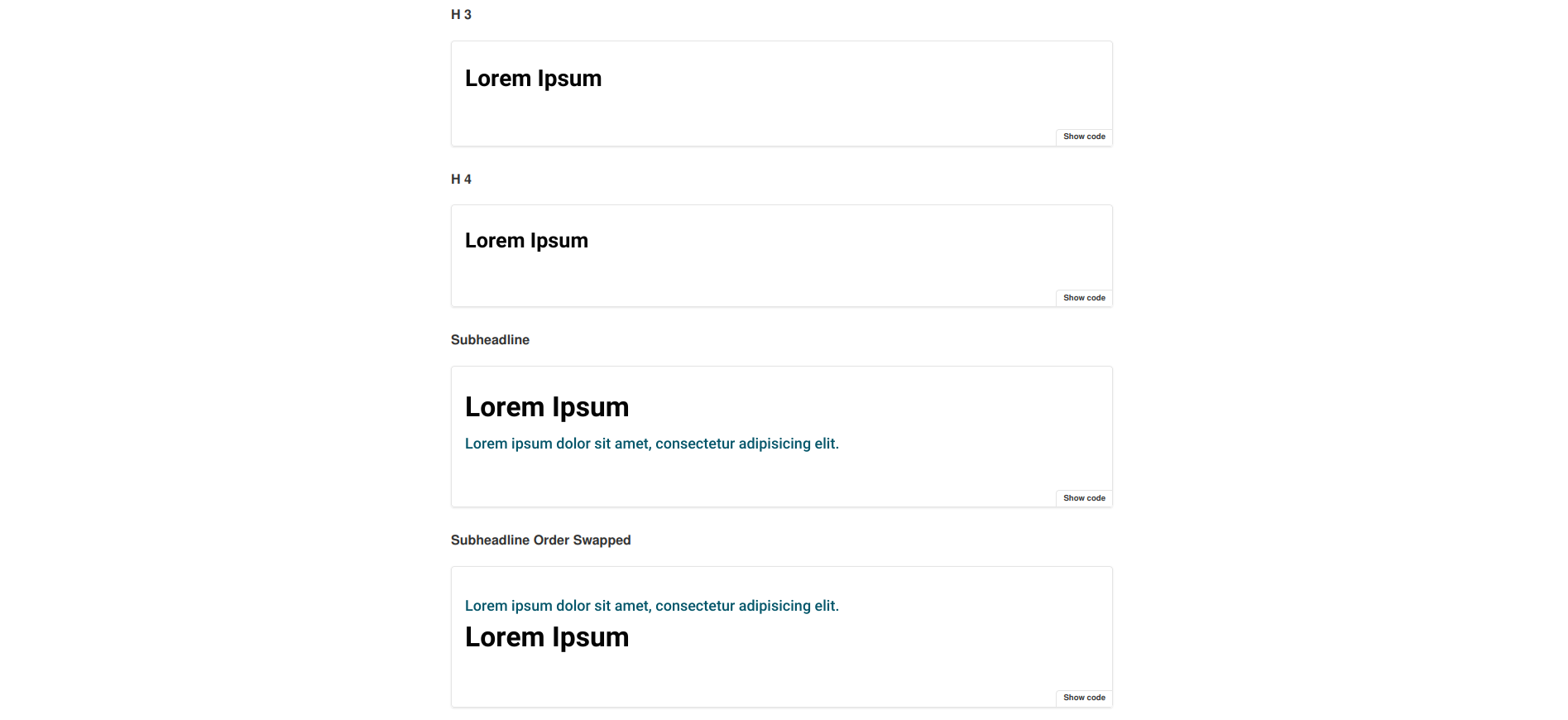
We like what the kickstartDS base Headline component has to offer. We just feel that we need a bit more flexibility in arranging the headlines different contents, which we try to achieve by making the order of headline and subheadline switcheable. We also want some light RTE-like content formatting options for all rendered text, while keeping the component simple by just mapping properties really needed by our use case.
We take level and spaceAfter directly, and rename subheadline to sub, styleAs to style and content to text for our version of the Headline. And crucially we add our own property switchOrder into the mix.
We also keep the name Headline, as it fits our use case well enough already.
Structure
Defining the structure of a component means finding the component API for it:
| Property | Type | Description |
|---|---|---|
text * | string | Text content of headline |
sub | string | Subheadline content |
switchOrder | boolean | Switch order of headline and subheadline |
level * | enum | Level of headline to use |
style | enum | Style of headline to show |
spaceAfter | enum | Whether to display space after headline |
Fields that should be required are marked with a *.
While directly helping us get a better grasp on our new component, these will also be used to write our JSON Schema later!
2. Component Creation
We like to colocate components. This means to have all involved files next to each other in the same folder; the template (.jsx / .tsx), potential CSS / SASS (.css / .scss), JavaScript (.js / .ts), our JSON Schema component definition (.schema.json), and so on.
So we start by creating the directory src/components/headline, from our Design System repository root:
_10mkdir -p src/components/headline
This is the folder we'll add new files to in the coming few paragraphs.
JSON Schema definition
First file we'll create is the JSON Schema definition, encoding the structure we've defined for our component before:
Finished JSON Schema
We'll work our way up to this JSON Schema definition.
Start with just the boilerplate for a component definition
This includes all necessarily required values for a valid component definition in kickstartDS.
Add basic info describing component
We start by adding a title, description and $id attribute. The correct $id depends on your Design System configuration. We'll assume you've created components before, living under the schema prefix http://schema.mydesignsystem.com.
Create text and sub fields...
Both fields are straight-forward string type properties, so we just document them a bit!
We do mark text and sub by setting format to markdown, though, to enable some light RTE-like formatting options of rendered text later on.
... and make text required
We declare text as required on the uppermost object!
Add switchOrder property
Next, we add our new property switchOrder, of type boolean.
Add allowed levels 1/2
We add a level property of type string...
Add allowed levels 2/2
... and make it an enum, defining its available options explicitly. We also set a default.
Make level required
We also make level a required field on the uppermost object.
Add allowed styles 1/2
We add a style property of type string...
Add allowed styles 2/2
... and make it an enum, defining its available options explicitly. We also set a default.
Add allowed spaceAfters 1/2
We add a spaceAfter property of type string...
Add allowed spaceAfters 2/2
... and make it an enum, defining its available options explicitly. We also set a default.
Finished JSON Schema
Let's have a look at our completed JSON Schema definition.
Finished JSON Schema
We'll work our way up to this JSON Schema definition.
Start with just the boilerplate for a component definition
This includes all necessarily required values for a valid component definition in kickstartDS.
Add basic info describing component
We start by adding a title, description and $id attribute. The correct $id depends on your Design System configuration. We'll assume you've created components before, living under the schema prefix http://schema.mydesignsystem.com.
Create text and sub fields...
Both fields are straight-forward string type properties, so we just document them a bit!
We do mark text and sub by setting format to markdown, though, to enable some light RTE-like formatting options of rendered text later on.
... and make text required
We declare text as required on the uppermost object!
Add switchOrder property
Next, we add our new property switchOrder, of type boolean.
Add allowed levels 1/2
We add a level property of type string...
Add allowed levels 2/2
... and make it an enum, defining its available options explicitly. We also set a default.
Make level required
We also make level a required field on the uppermost object.
Add allowed styles 1/2
We add a style property of type string...
Add allowed styles 2/2
... and make it an enum, defining its available options explicitly. We also set a default.
Add allowed spaceAfters 1/2
We add a spaceAfter property of type string...
Add allowed spaceAfters 2/2
... and make it an enum, defining its available options explicitly. We also set a default.
Finished JSON Schema
Let's have a look at our completed JSON Schema definition.
This concludes creating the JSON Schema. When running the schema generation in our Design System again, we should now automatically end up with a corresponding type definition to be used in creation of the template in the next step:
How your schema generation is started might change depending on your setup. If you've followed our "Create your Design System" guide before, or want to add it like we do, follow this section of it closely.
React template
As the final step for this example, we'll add the template. This will be a purely functional React component, mapping our component structure (as defined in the JSON Schema) to the original component we're basing our work off of; the kickstartDS Storytelling component.
Finished React template
We'll work our way up to this React template.
Start with a boilerplate
Again we'll start with a very basic skeleton for our React component. We're using TypeScript here (.tsx), but it works the same with plain JSX (.jsx).
Defining RenderFunctions
We define the render functions interface that will enable our RTE-like functionality for the text and sub properties.
Add correct typings
Import and add generated props from HeadlineProps.ts. Generated by our JSON Schema, these guarantee you're matching your expected component structure while implementing. In combination with TypeScript this enables auto-complete and auto-fix for even better DX! (see here, at the very end of that section, for more details)
We also add our rendering functions and HTMLAttributes<HTMLElement> to the type signature.
Destructure props
We also need to add our own properties, so we'll destructure props. We add our default values here, too. Because we're using rendering functions, we also need to have those in there... we'll just pass through everything HTMLAttributes related!
Add Headline component 1/5
As we can't use the underlying kickstartDS base component export directly, because we intend to customize its behaviour, we start with the raw component template of the original kickstartDS Headline instead. You can find its markup in our Github mono-repository here.
We also write the level into TagName, which we'll use to generically render the correct markup tag for the Headline.
Add Headline component 2/5
We then remove options we don't intend to use...
Add Headline component 3/5
... and rename and rewire the properties to our component API.
Add Headline component 4/5
Most importantly, we now add our customized behaviour using switchOrder.
Add Headline component 5/5
Finally we make sure not to render anything, if both text and sub are empty.
Add component Provider
We want our Headline to replace all default kickstartDS base Headlines, no matter where they appear. We add a Provider for that purpose now!
Finished React template
Let's have a look at our completed React template.
Finished React template
We'll work our way up to this React template.
Start with a boilerplate
Again we'll start with a very basic skeleton for our React component. We're using TypeScript here (.tsx), but it works the same with plain JSX (.jsx).
Defining RenderFunctions
We define the render functions interface that will enable our RTE-like functionality for the text and sub properties.
Add correct typings
Import and add generated props from HeadlineProps.ts. Generated by our JSON Schema, these guarantee you're matching your expected component structure while implementing. In combination with TypeScript this enables auto-complete and auto-fix for even better DX! (see here, at the very end of that section, for more details)
We also add our rendering functions and HTMLAttributes<HTMLElement> to the type signature.
Destructure props
We also need to add our own properties, so we'll destructure props. We add our default values here, too. Because we're using rendering functions, we also need to have those in there... we'll just pass through everything HTMLAttributes related!
Add Headline component 1/5
As we can't use the underlying kickstartDS base component export directly, because we intend to customize its behaviour, we start with the raw component template of the original kickstartDS Headline instead. You can find its markup in our Github mono-repository here.
We also write the level into TagName, which we'll use to generically render the correct markup tag for the Headline.
Add Headline component 2/5
We then remove options we don't intend to use...
Add Headline component 3/5
... and rename and rewire the properties to our component API.
Add Headline component 4/5
Most importantly, we now add our customized behaviour using switchOrder.
Add Headline component 5/5
Finally we make sure not to render anything, if both text and sub are empty.
Add component Provider
We want our Headline to replace all default kickstartDS base Headlines, no matter where they appear. We add a Provider for that purpose now!
Finished React template
Let's have a look at our completed React template.
To complete the template we add the HeadlineProvider to our src/components/Providers.jsx:
This concludes the creation of our new Headline component. It's now ready to be used inside your Design System, and available to your down stream consumers... hopefully efficiently closing a gap for them!
Use of Storybook
If you're using Storybook, you can follow this part of the example to get all the integration goodness possible with kickstartDS!
Storybook setup
This guide assumes you're using a set up like described in our Create your Design System guide! Be sure to adapt commands and configuration to your use accordingly, when following this part!
Add the following file to your src/components/headline folder:
Import Headline component
Import Headline component and add it to the Template that we'll bind Stories to.
Import Storybook Controls helpers
Import dereferenced component JSON Schema and getArgsShared helper to generate Storybook Controls, and parameterize Storybook JSON Schema Addon.
Import re-usable Headline Stories...
We import the existing Headline Story part of @kickstartDS/base, to re-use all the default settings.
... and overwrite values where needed
We set all the Story defaults specific to our component.
Convert args to flat keys
We use pack to convert all deep JSON args to flat (. delimited) keys and values. This is the format your Storybook Controls get generated off.
Create Headline variants
We do this by binding to our Template, and use pack to convert all deep JSON args to flat (. delimited) keys and values. This is the format your Storybook Controls get generated off.
If you reopen your Storybook now, or if you kept it running while following along, you should now see your new Headline in all its glory!
Finished Code Sandbox
You can also have a look at the completed component in the following Code Sandbox:
Toggle the file browser with the hamburger icon at the top left, or open it directly in your browser.
_10